The world of digital art has been revolutionized, and at its heart is the incredible power of generative AI. If you've ever dreamt of conjuring professional-grade visuals from simple text, you've likely heard of Stable Diffusion. It's more than just an AI tool; it's a creative engine that has changed the game for artists, designers, and hobbyists alike.
In a previous article, we delved into the fundamentals of "What is Stable Diffusion?" and if you’re looking for a deep dive into the technology, we encourage you to check that out. For those already familiar with the basics, this guide is your fast-track to mastery. We're moving beyond the "what" and diving straight into the "how." Our focus here is on the best way to use Stable Diffusion to create stunning AI images both efficiently and quickly.
Ready to unleash your creativity with this leading stable diffusion AI generator? Let’s turn those imaginative prompts into reality, fast.
Start With A Clear Intent And A Simple Plan
Before you open any AI Stable Diffusion image generator, decide what you want in one sentence. Portrait or product shot. Painterly or photoreal. Soft light or dramatic contrast. That single line will guide everything else, from prompt wording to sampler choices. A tight goal also prevents you from chasing endless variations and helps you find the best way to use Stable Diffusion for your project.
A quick plan helps even more. Sketch your path in three stages. First draft for composition, second pass for style, final pass for polish. You can do these stages in one tool, and on mobile you can move through them quickly without getting lost in settings.
How To Write Prompts With Stable Diffusion AI Generator
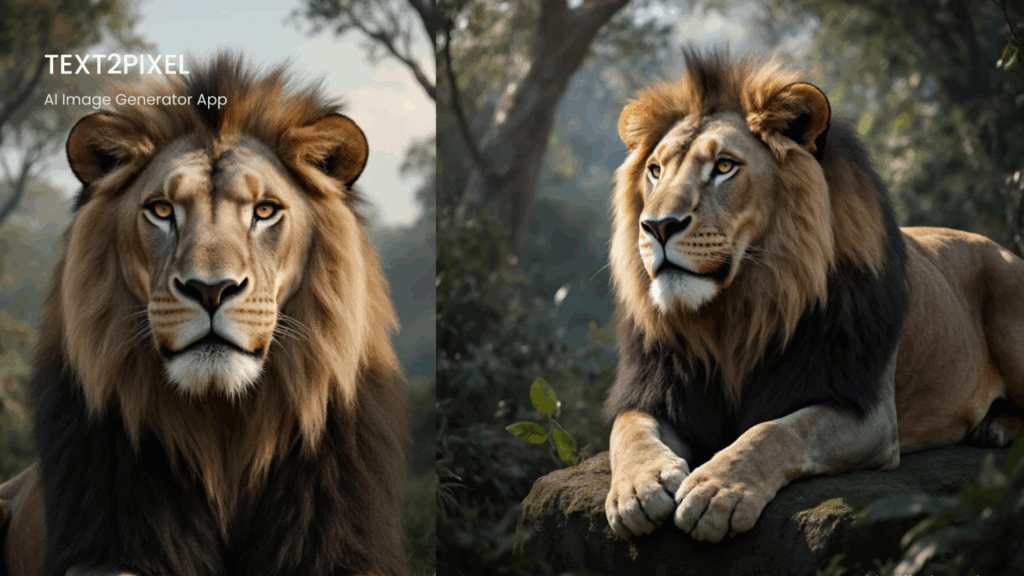
The single most crucial skill in using any AI image generator Stable Diffusion model is prompt engineering. Think of your prompt as the script for the AI's movie. A weak script equals a confusing film; a detailed, well-structured script yields a masterpiece.
Key Elements for an Effective Prompt:
- Subject: Clearly define the main focus. (e.g., A majestic lion, a cyberpunk cityscape, a floating medieval castle).
- Style/Medium: Specify the artistic style you want. This is where you elevate your output. (e.g., oil painting, digital art, photorealistic, cinematic shot, watercolor, pencil sketch).
- Details/Modifiers: Add descriptive adjectives, setting, mood, and lighting. The more specific, the better. (e.g., volumetric lighting, soft reflections, deep shadows, pastel colors, trending on ArtStation).
- Resolution/Quality: Use terms that demand high fidelity. (e.g., 8k, highly detailed, sharp focus, octane render).
Pro-Tip: Don't write a sentence; write a weighted list of keywords separated by commas. For example: "A majestic lion, cinematic shot, volumetric lighting, photorealistic, 8k, trending on ArtStation, jungle background."
Go Beyond The Base When Choosing Your AI Model
The true power of a stable diffusion AI image generator lies in the custom models built upon the foundational technology. While the original Stable Diffusion models (like the highly effective Stable Diffusion 3.5) are fantastic, specialized models—often found on community platforms—are trained on specific datasets (anime, photography, abstract art) and produce vastly different results.
Speed First
Pick an optimized model such as Stable Diffusion 3.5 Turbo or a simplified variant. Fewer steps mean faster results, great for quick ideation on mobile.
Quality First
Explore custom checkpoints or LoRAs that target hyper realism or distinct aesthetics. They can take a bit longer but often produce standout images that feel unique.
Get the most in Text2Pixel
Start in a fast mode to prototype, then switch to a quality mode to refine details. When available, try curated community models or LoRAs inside the app to skip complex setup while dialing in the exact style you want.
Make It Better With One More Round
The most common mistake beginners make when they learn how to use Stable Diffusion is settling for the first result. AI art is an iterative process. You refine the image by generating multiple versions and making small, incremental changes.
- Generate 4-8 Images: Use a random "Seed" initially to get a wide variety of compositions from a single prompt.
- Lock the Best Seed: Once you find a composition you like, lock in that image’s "Seed" number. This ensures the base composition stays the same.
- Refine Your Prompt: Keep the Seed locked and now change a small part of your prompt (e.g., swap "pastel colors" for "neon colors," or change the background setting). This allows you to explore variations while keeping the core structure you already love.
Finish Strong With Upscale And Light Retouch
Great AI art feels finished. Two fast steps help you get there.
Upscale
Use an upscale tool to add resolution after you lock the look. Upscaling at the end saves compute time during exploration and gives you a clean final output for print or web.
Light retouch
Do quick fixes for eyes, hands, edges, and banding. Remove stray artifacts and tiny text, if any slipped in. Most AI art generator stable diffusion workflows benefit from a minute of cleanup. On mobile, this is as simple as running a quick enhance pass or using a basic brush in your favorite editor.
Generate Your Masterpiece with Stable Diffusion AI Image Generator

If you prefer creating on the go, a focused mobile experience is ideal. Text2Pixel is designed to make daily creation feel light and fast. Open the app, choose a style that matches your intent, write a short prompt, and run a quick first pass. If you want more detail, rerun with a bit more refinement. Because it is mobile first, you can test ideas at any moment, from a client meeting to your commute. This is how an AI image generator Stable Diffusion workflow becomes a habit rather than a once a week task.
Text2Pixel supports the common controls you expect from a stable diffusion AI generator in a way that stays approachable for everyday use. You get the benefits of a stable diffusion AI image generator without the heavy setup. For teams, this means faster feedback loops and a higher volume of usable concepts. For solo creators, it means more finished pieces with less friction.
Download Text2Pixel to start creating immediately with Text2Pixel and turn your text into incredible pixel-perfect art today!